
Half the XCIPTV Guides Out There Were Written by Someone Who Never Broke Anything
Let me be blunt. Half the XCIPTV setup guide posts floating around the internet were written by someone who installed the app once on a demo box and called it expertise. They skip the parts where things actually break, the codec mismatch at 9pm on a Saturday when your subscriber’s family is mid-movie, the EPG that loads blank because nobody bothered explaining timezone offsets, the VOD library that just… vanishes.
This isn’t that kind of article.
What follows is an XCIPTV setup guide assembled from years of deploying this player across hundreds of subscriber lines, troubleshooting in real time, and figuring out which settings the app’s own documentation never bothered to mention. Whether you’re an IPTV reseller onboarding your first batch of users or a household trying to get a clean picture on a weekend, every section here exists because something went wrong and somebody had to fix it.
What Makes XCIPTV Different From Every Other Player on the Market
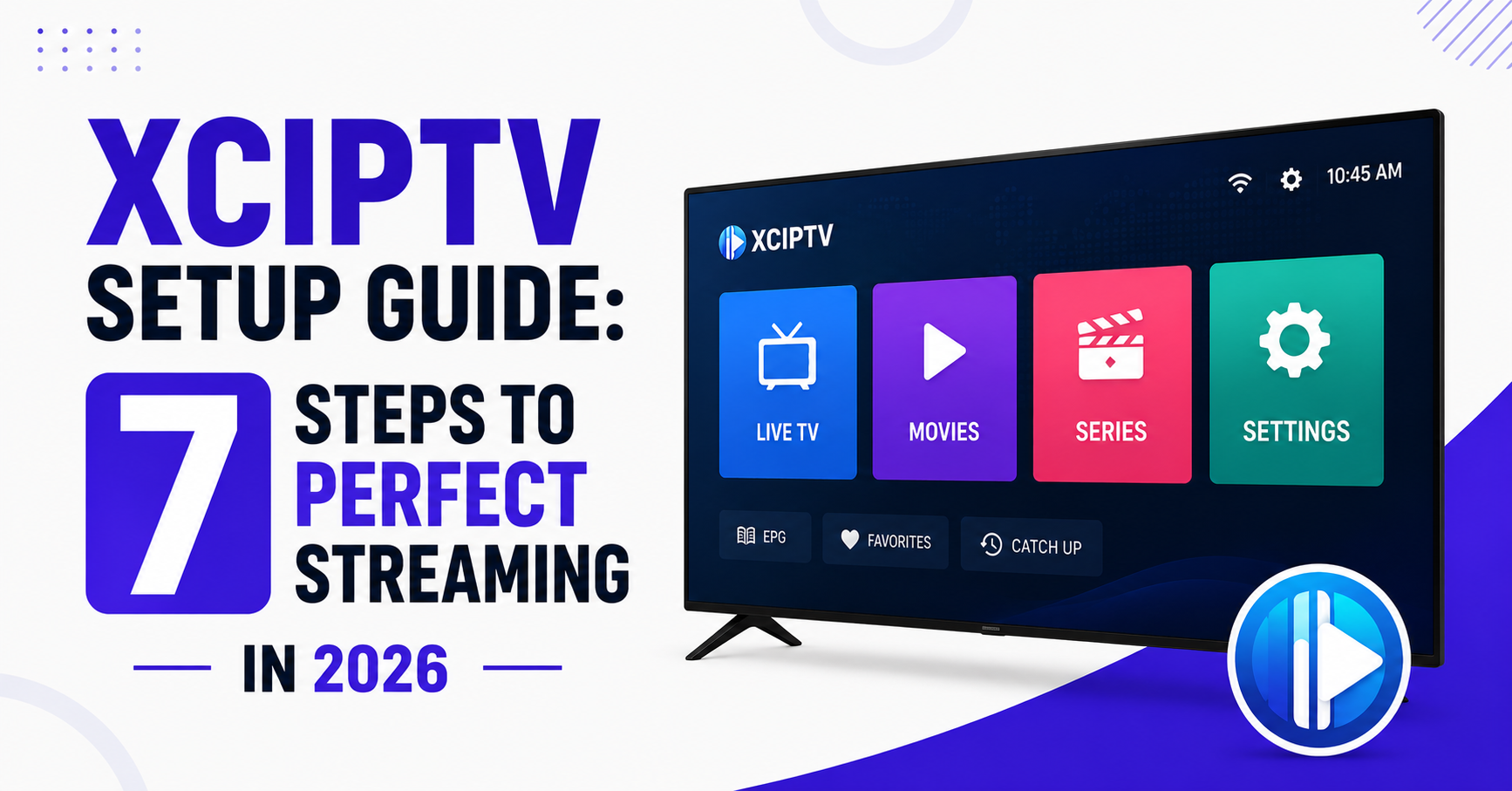
Before diving into any XCIPTV setup guide, it’s worth understanding why this particular player keeps gaining ground. XCIPTV isn’t just another M3U loader. It handles Xtream Codes API login natively, supports EPG mapping without third-party tools, and offers a multi-profile system that most competitors still lack.
That multi-profile feature is a bigger deal than people realise. A single household might have three different viewing preferences, sports, kids’ content, international channels. Instead of loading one massive playlist and scrolling endlessly, XCIPTV lets each user maintain their own environment within the same app.
For resellers, this means fewer support tickets. When a subscriber’s spouse complains they can’t find their channels, you point them to profile switching, not a full reinstall.
Pro Tip: Always set up a “Test” profile on any device you ship or configure remotely. It lets you troubleshoot playlist and EPG issues without disturbing the subscriber’s personalised layout.
Downloading XCIPTV Without Installing Garbage Alongside It
This step trips people up more than it should. XCIPTV is available on the Google Play Store for Android devices, but the situation gets murkier with Amazon Firestick and off-brand Android boxes. A proper XCIPTV setup guide has to address sideloading, because that’s the reality for most deployments.
On Firestick, you’ll need the Downloader app. Install it from the Amazon Appstore, enable “Apps from Unknown Sources” under Settings > My Fire TV > Developer Options, and then enter the direct APK URL from the XCIPTV official source.
Critical point: do not grab APKs from random download mirrors. Modified APKs have been caught injecting ad overlays and, worse, logging Xtream API credentials. If you’re a reseller distributing lines, a compromised player means your panel credentials are exposed.
The table below breaks down which sources are safe and which aren’t:
| Source type | Risk level | Recommended? |
|---|---|---|
| Google Play Store | Low | Yes: Android phones/tablets |
| Official APK site | Low | Yes: Firestick, Android boxes |
| Third-party mirror | High | Never use |
| Modded “Pro” APKs | Critical | Absolute no: credential theft risk |
Connecting Your Xtream Codes API Credentials the Right Way
Here’s where the real XCIPTV setup guide begins. Open the app, and you’ll see an option to add a playlist. You get two choices: M3U URL or Xtream Codes API. Choose Xtream Codes API every single time.
Why? Because M3U loads a static file. Every time your provider updates their channel list, renames a category, or rotates a stream URL, your M3U is stale. Xtream Codes API pulls live data from the panel, channels, VOD, series, EPG, all synced in real time.
Enter these three fields exactly as your provider or panel gives them. The Server URL is usually formatted as http://domain.com:port (do not add /get.php or any trailing path). The Username is your line username, case-sensitive. And the Password is your line password, case-sensitive.
One mistake resellers make constantly: they send subscribers a full M3U URL and then wonder why the XCIPTV setup guide they followed didn’t produce the same result as their test device. The M3U URL contains the server, username, and password embedded in it, extract those three elements and enter them into the API fields instead.
Pro Tip: If a subscriber reports “Server not found” after entering credentials, the first thing to check isn’t the credentials themselves, it’s whether their ISP is blocking the port. Ask them to switch from mobile data to Wi-Fi (or vice versa) as a quick diagnostic.
EPG Configuration: Why Your Programme Guide Shows Nothing
A blank EPG is the single most common complaint after following any XCIPTV setup guide. The app technically auto-loads EPG from the Xtream Codes API, but “technically” and “reliably” are two very different words.
First, confirm your panel actually has EPG data assigned. Log into your reseller panel, check the EPG source URL, and make sure it’s active and recently updated. Stale EPG sources, ones that haven’t refreshed in 48+ hours, will either show nothing or display yesterday’s schedule on a permanent loop.
Inside XCIPTV, navigate to Settings > EPG. You’ll see an option to set an EPG refresh interval. Set this to every 12 hours, not the default 24. For panels serving multiple time zones, you also need to set the EPG time shift. If your subscribers in the UK are seeing programme times that are two hours ahead, the panel’s EPG source is likely pegged to CET. Apply a –1 or –2 hour shift inside XCIPTV to correct it.
Check the panel EPG source status (active vs stale), set the refresh interval to 12 hours inside XCIPTV, adjust the timezone offset in EPG settings, clear the EPG cache and reload if data appears corrupted, and confirm channel-to-EPG ID mapping in your panel.
Player Settings That Stop Buffering Before It Starts
Every XCIPTV setup guide mentions buffering, but almost none of them explain what’s actually happening under the hood. XCIPTV uses ExoPlayer as its default decoder. ExoPlayer is solid for most HLS streams, but it struggles with certain MPEG-TS encapsulated feeds, particularly older panel setups still pushing TS over HTTP rather than HLS.
Go to Settings > Player. Switch the decoder to “Hardware” if your device supports it (most Firestick 4K and Android boxes from 2021 onward do). This offloads decoding from the CPU to the device’s dedicated video chip. On low-RAM devices like the base Firestick Lite, this single change can eliminate micro-stutters that software decoding causes.
Buffer size is the other lever. XCIPTV allows you to set a custom buffer. For stable fibre connections, 2 to 3 seconds is fine. For subscribers on congested Wi-Fi or mobile data, push it to 5 to 8 seconds. Yes, there’s a slightly longer initial load time, but the stream won’t cut every 40 seconds.
Pro Tip: If a subscriber’s stream keeps dropping specifically during peak evening hours (7 to 10pm), the issue is almost never the player config, it’s server-side capacity. Before tweaking XCIPTV settings endlessly, check whether your provider’s uplink is saturated. A good provider maintains backup uplink servers for exactly this scenario.
Setting Up Favourites and Channel Management for Households
This part of the XCIPTV setup guide matters more for subscriber retention than most resellers realise. A household that can’t find their channels quickly will cancel faster than one experiencing occasional buffering. People tolerate minor tech issues. They don’t tolerate frustration.
XCIPTV lets users long-press any channel to add it to Favourites. But the smarter approach, if you’re configuring devices before shipping or during remote support, is to pre-build a Favourites list that covers the subscriber’s likely preferences.
Ask three questions during onboarding: sports, entertainment, or both? Any kids in the household? Do you watch international channels?
Then pre-load 20 to 30 channels into Favourites. This takes five minutes and saves you hours of support messages later. The subscriber opens the app, taps Favourites, and everything they care about is right there.
For resellers managing this at scale, create a simple onboarding checklist document that maps common requests to channel category names in your panel. You’ll standardise your XCIPTV setup guide process and reduce per-subscriber setup time to under ten minutes.
Multi-Device Deployment: One Panel Line, Multiple Screens
This is where the XCIPTV setup guide becomes a reseller operations conversation. Most panels allow 1 to 2 concurrent connections per line. Subscribers increasingly expect to watch on a TV in the lounge and a tablet in the bedroom simultaneously.
If your panel supports multi-connection lines, XCIPTV handles this cleanly, install the app on each device, enter the same credentials, and each device streams independently. But if your panel limits connections, the second device will kick the first one off.
Here’s how different connection setups play out:
| Connection setup | Behaviour | Subscriber experience |
|---|---|---|
| 1-connection line, 2 devices | Second device kicks first | Complaints, frustration |
| 2-connection line, 2 devices | Both stream simultaneously | Smooth household use |
| 2-connection line, 3 devices | Third device kicks oldest | Moderate friction |
Resellers who upsell multi-connection lines at a small premium see lower churn. A family that can watch on two screens without conflict stays subscribed. This isn’t a technical insight, it’s a retention insight baked into how you structure your XCIPTV setup guide for each household.
Catching Stream Issues Before Your Subscriber Does
Reactive support kills reseller margins. Every time a subscriber messages you about a dead channel, you’re losing time. A proper XCIPTV setup guide should include a monitoring habit, not just a one-time config.
XCIPTV doesn’t have built-in stream health monitoring, but your panel does. Most Xtream Codes panels show active connections, stream bitrate, and error logs. Check these daily, or at minimum, every evening before peak hours.
Watch for channels returning HTTP 403 (blocked or geo-restricted at source), streams stuck at 0 kbps bitrate (source feed down), lines showing “expired” that shouldn’t be (panel credit sync issue), and multiple rapid reconnects from the same line (subscriber’s connection unstable, or DNS poisoning interfering with resolution).
Pro Tip: Set up a test line on your own device running XCIPTV. Flip through your top 20 channels every evening at 6pm before complaints start rolling in. Five minutes of proactive checking saves two hours of reactive firefighting.
Handling ISP Interference and DNS Issues in 2026
No XCIPTV setup guide is complete without addressing the elephant in the room: ISP blocking. In 2026, AI-driven deep packet inspection has made things significantly harder. Major broadband providers now use machine learning models trained to detect streaming traffic patterns, not just domain-level blocking, but behavioural analysis of traffic flow.
What does this mean practically? A subscriber’s XCIPTV app might work perfectly on Monday and fail completely by Wednesday because their ISP pushed a new filtering update overnight.
The first line of defence is DNS. Switch the device’s DNS away from the ISP default. Use providers like Cloudflare (1.1.1.1) or Google (8.8.8.8) at the router level, not just the device level. This prevents DNS poisoning, where the ISP intercepts DNS queries and redirects your panel’s domain to a block page.
The second layer is a VPN, but be smart about it. Free VPNs introduce latency that ruins live streams. If recommending a VPN to subscribers, specify that they need one with low-latency servers in a region where streams aren’t blocked. And critically, configure the VPN at the router level so XCIPTV traffic is automatically tunnelled without the subscriber needing to toggle an app every time they watch.
VOD and Series Setup: The Part Everyone Forgets
Most XCIPTV setup guide articles focus exclusively on live TV. But VOD and Series sections are becoming a primary reason households choose IPTV over traditional options. Your subscribers want on-demand content, and if the VOD section inside XCIPTV looks broken or empty, they’ll assume your service is subpar.
VOD loads through the Xtream Codes API just like live channels. If it’s not appearing, check whether your panel hasn’t enabled VOD for that specific line or package, whether the VOD source your provider uses is down or returning empty responses, or whether XCIPTV’s category cache is stale, force a refresh by clearing app data (Settings > Apps > XCIPTV > Clear Cache, not Clear Data).
For the Series section, XCIPTV organises content by season and episode when the panel’s metadata is structured correctly. If episodes appear out of order or seasons are missing, the issue is upstream, your provider’s content catalogue has bad metadata, and no amount of XCIPTV configuration will fix it. That’s a conversation to have with your provider, armed with specific examples.
Frequently Asked Questions
Does XCIPTV work on iOS devices?
No. XCIPTV is an Android-only application. It runs on Android phones, tablets, Firestick devices, Nvidia Shield, and generic Android TV boxes. For iOS, subscribers need alternative players that support Xtream Codes API login. UK IPTV Resellers should maintain a short list of tested iOS-compatible players to avoid losing potential subscribers who only own Apple devices.
How often should I update the XCIPTV app?
Check for updates every 2 to 3 weeks. Updates often patch codec compatibility, fix EPG rendering bugs, and improve ExoPlayer stability. Running outdated versions is a common cause of playback issues that resellers waste hours troubleshooting. On sideloaded devices like Firestick, updates don’t happen automatically, you or the subscriber must manually download the latest APK.
Can I use the same XCIPTV setup guide for all Android devices?
The core steps, API login, EPG configuration, player settings, are identical. But hardware-specific tweaks matter. Firestick Lite needs software decoding due to limited GPU capability, while Nvidia Shield handles hardware decoding effortlessly. Buffer sizes should also vary based on the device’s RAM and the subscriber’s connection speed. One-size-fits-all configs create unnecessary support tickets.
What do I do if XCIPTV shows “connection timeout” after setup?
This usually points to three things: incorrect server URL formatting (trailing slashes or extra paths), ISP-level port blocking, or the panel server being temporarily down. Test the same credentials on a different network first. If they work elsewhere, the subscriber’s ISP is likely interfering. Switching DNS or using a VPN typically resolves it within minutes.
Is XCIPTV better than TiviMate for reseller deployments?
Both are strong players, but XCIPTV edges ahead for resellers who need low-maintenance subscriber setups. Its native Xtream Codes API handling and multi-profile system reduce configuration steps. TiviMate offers more UI customisation but requires a premium unlock for full functionality, which adds friction during subscriber onboarding. Your XCIPTV setup guide will generally be shorter and simpler to follow.
How do I fix EPG showing wrong times in XCIPTV?
Navigate to Settings > EPG and adjust the time shift value. Most European-sourced EPG feeds are set to CET, so UK subscribers need a –1 offset. Middle Eastern or Asian subscribers may need different adjustments. After changing the value, clear the EPG cache and force a reload. If times are still wrong after adjustment, the issue is in your panel’s EPG source configuration, not XCIPTV itself.
Can resellers remotely configure XCIPTV on subscriber devices?
Not natively, XCIPTV doesn’t have a remote management feature. However, resellers using TeamViewer or AnyDesk can remotely access Android devices to perform the full XCIPTV setup guide process. For Firestick, apps like Remote Desktop for Fire TV provide similar functionality. Pre-configuring devices before shipping remains the most reliable approach for consistent setups.
Does using a VPN affect XCIPTV stream quality?
It depends entirely on the VPN’s server quality. Premium VPN services with dedicated streaming servers add minimal latency, often under 15ms. Free or overcrowded VPN servers can increase buffer times significantly and reduce stream resolution from HD to SD. If a VPN is necessary due to ISP blocking, always test stream quality through the VPN before recommending it to subscribers as part of your XCIPTV setup guide.
XCIPTV Setup Guide: Reseller Success Checklist
- Download XCIPTV only from Google Play Store or the official APK source, never third-party mirrors
- Always use Xtream Codes API login over M3U URL for live-synced channel and VOD data
- Create a dedicated “Test” profile on every device for troubleshooting without disrupting subscriber settings
- Set EPG refresh to 12 hours and apply correct timezone offsets before handing the device to the subscriber
- Switch player decoder to Hardware on capable devices and adjust buffer size based on connection quality
- Pre-build a Favourites list during onboarding based on the subscriber’s viewing preferences
- Upsell multi-connection lines to households, it’s a retention tool, not just a revenue bump
- Monitor your panel daily for dead channels, expired lines, and bitrate anomalies before peak hours
- Configure DNS at the router level (not just device level) to counter ISP-level DNS poisoning
- Test VPN stream quality before recommending any VPN to subscribers, free VPNs degrade playback
- Visit British Reseller.com for tested IPTV reseller panel access with reliable uplink infrastructure and multi-device support