
Forget Casting, Here’s How IPTV on Chromecast Actually Works in 2026
There’s a lie floating around every IPTV forum and budget blog you’ve ever read. It goes something like this: “Just cast your IPTV to Chromecast and you’re sorted.” That advice has generated more support tickets than buffering ever did.
IPTV on Chromecast has a reputation problem, and most of it comes from people using the wrong device, the wrong method, or both. The old-school Chromecast dongles, the ones without a remote, without Google TV, were never designed to handle sustained HLS streams from third-party players. They were built for YouTube and Netflix casting. Trying to push a live IPTV feed through them is like running a motorway’s worth of traffic through a country lane.
If you’re a reseller, you already know this because your inbox told you. Casting failures, random disconnects, audio sync issues, and the classic “black screen after 10 minutes” complaint. All of it traces back to one misunderstanding: not every Chromecast is the same device.
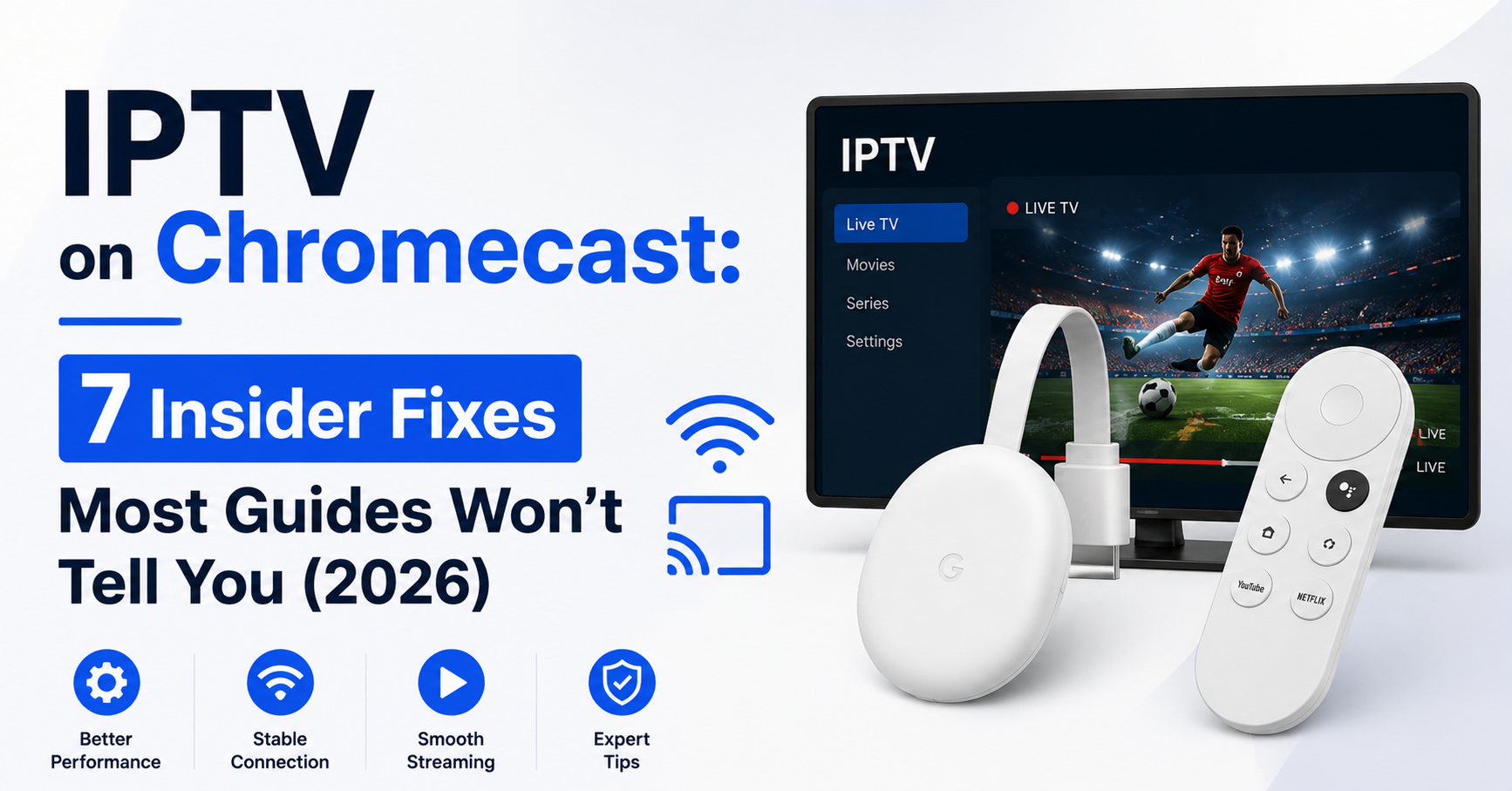
The real shift happened when Google launched Chromecast with Google TV. That changed IPTV on Chromecast from a gamble into a genuinely usable setup, because suddenly you could install apps directly, skip the casting chain entirely, and treat the device like a proper Android box.
Pro Tip: If a customer asks you whether their “Chromecast” supports IPTV, the first question back should always be: “Does it have a remote?” No remote means old dongle. Old dongle means casting-only. Casting-only means trouble.
Why Casting Fails and Direct Install Doesn’t
Let’s break down what actually happens when someone tries to cast IPTV on Chromecast using the traditional method.
The user opens an IPTV player on their phone, Smarters, GSE, whatever they downloaded first. They hit the cast icon. The phone tells the Chromecast to fetch and render the stream. Now the Chromecast is doing all the decoding, but it’s receiving instructions from the phone over local Wi-Fi. If the phone locks, the Wi-Fi hiccups, or the app loses foreground priority, the cast dies.
That chain of failure doesn’t exist with direct install. When you load an IPTV player natively on Chromecast with Google TV, the device handles everything locally. No middleman. No phone dependency. The stream connects from panel server to device, full stop.
This is why experienced IPTV Panel resellers running IPTV on Chromecast tell every new subscriber the same thing: install the app on the device itself.
Here’s how the three approaches actually compare:
| Method | Stability | Phone required? | Best for |
|---|---|---|---|
| Casting from phone | Low, drops frequently | Yes, must stay active | Quick test only |
| Direct install on Google TV | High, runs independently | No | Daily viewing |
| Screen mirroring | Very low, lag + quality loss | Yes | Not recommended |
That table isn’t theoretical. It’s built from thousands of support conversations across multiple reseller panels.
Matching the Right Player to Chromecast With Google TV
Not every player behaves the same on Chromecast with Google TV, even though the operating system is technically Android TV. Some apps that run perfectly on a Firestick will stutter, crash, or refuse to load channel lists on Google TV’s slightly different runtime environment.
IPTV on Chromecast works best when you match the player to the device’s strengths. Google TV handles IPTV Smarters Pro and TiviMate well, but there are quirks. Smarters occasionally has EPG loading delays on lower-spec Chromecast hardware. TiviMate runs smoother overall but needs a premium licence for multi-playlist support.
The critical thing resellers overlook is testing. Before you recommend a setup to fifty subscribers, test IPTV on Chromecast yourself using the exact player, the exact panel line, and the exact connection type your customer will use.
Pro Tip: Create a “Chromecast setup guide” PDF specific to your panel. Include the exact app download link, your portal URL, and step-by-step screenshots. This alone cuts your support queries by half.
The Ethernet Adapter Nobody Talks About
Here’s something that separates a frustrated Chromecast viewer from a happy one: a £15 ethernet adapter.
Chromecast with Google TV supports USB-C ethernet adapters, and the stability difference is not subtle. On Wi-Fi, even a strong 5GHz connection introduces micro-drops that interrupt HLS stream continuity. You won’t notice it on YouTube, adaptive bitrate handles that seamlessly. But IPTV streams, particularly from panels running on tighter infrastructure, don’t have that luxury.
When a subscriber switches to a wired connection, IPTV on Chromecast suddenly behaves like it’s running on a dedicated Android box. Buffering drops. Channel zapping speeds up. EPG loads without timeouts.
- A USB-C to Ethernet adapter costs between £12 to 20
- Plug directly into the router, not a powerline adapter or Wi-Fi extender
- Chromecast with Google TV auto-detects the wired connection and prioritises it
- No settings changes required on the IPTV app side
If you’re a reseller dealing with Chromecast-related buffering complaints, the ethernet adapter should be your first recommendation, before you start blaming the server or the line quality.
The Onboarding Mistakes Resellers Keep Making
Most resellers treat device support as an afterthought. Someone buys a subscription, gets their M3U or Xtream Codes credentials, and is left to figure it out. That’s where IPTV on Chromecast goes sideways, not because the tech fails, but because the guidance is missing.
The biggest mistake is assuming all Chromecast devices are equal. A reseller who doesn’t ask “which Chromecast do you have?” before sending setup instructions is setting themselves up for a refund request within 48 hours.
Here’s what a solid onboarding flow looks like for Chromecast customers:
- Confirm the customer has Chromecast with Google TV (not an older dongle)
- Recommend a tested IPTV player and send the direct download link
- Provide Xtream Codes login details with a visual setup walkthrough
- Advise ethernet adapter if they report any buffering
- Set expectations, explain that casting from phone is not the supported method
Pro Tip: Add a one-line disclaimer to your product page: “For Chromecast, we recommend the Google TV version with direct app install.” This filters out incompatible devices before the sale even happens.
ISP Blocking and DNS Issues Specific to Chromecast
Here’s where IPTV on Chromecast introduces a wrinkle that most Firestick and Android box users never encounter. Google TV, by default, is more tightly integrated with Google’s DNS infrastructure. That means if your customer’s ISP is using DNS poisoning to block IPTV panel domains, which is increasingly common in the UK and parts of Europe through 2026, the Chromecast may not resolve the server address at all.
On a Firestick, changing DNS to a third-party provider is straightforward. On Chromecast with Google TV, it’s slightly more buried in the network settings menu. Many subscribers don’t even know DNS settings exist, let alone that they need changing.
The fix is router-level DNS. If you advise your customer to set DNS at the router (using providers like Cloudflare 1.1.1.1 or Google 8.8.8.8), every device on the network, including the Chromecast, inherits the change. No per-device configuration needed.
Here’s how the three DNS approaches compare:
| DNS approach | Ease of setup | Covers all devices? | ISP block bypass |
|---|---|---|---|
| Change on Chromecast only | Moderate | No | Yes |
| Change at router level | Easy (one-time) | Yes | Yes |
| Use VPN on router | Advanced | Yes | Yes, but adds latency |
AI-driven ISP enforcement is getting smarter in 2026, pattern-matching stream traffic regardless of DNS. But for the majority of basic DNS-level blocks, the router method solves IPTV on Chromecast access issues cleanly.
Why Panel Server Quality Shows Up Fastest on Chromecast
There’s a reason cheap panels expose themselves fastest on Chromecast devices. Lower-spec hardware has less tolerance for inconsistent stream delivery. When your uplink server is overloaded, a Firestick 4K might buffer once and recover. A Chromecast with Google TV, running on Wi-Fi with marginal signal, will freeze entirely.
IPTV on Chromecast is essentially a stress test for your panel’s infrastructure. If your provider isn’t running proper load balancing across multiple uplink servers, Chromecast customers will be the first to complain, and the first to churn.
This matters for resellers choosing panels. Ask your provider:
- How many concurrent connections per server before load redistribution?
- Do they have backup uplink servers for failover?
- What’s their average HLS latency during peak hours (evenings, match days)?
If you can’t get straight answers, the panel isn’t built for scale. And if it’s not built for scale, your Chromecast subscribers will feel it first.
Pro Tip: Run a test line on Chromecast with Google TV during a peak event, a Saturday evening with premium sports streams running. If it holds, the panel can handle your subscriber base. If it buffers, don’t scale until the provider upgrades their infrastructure.
Chromecast vs Firestick vs Android Box: Where IPTV on Chromecast Sits
People ask this constantly, and the answer isn’t one-size-fits-all. IPTV on Chromecast with Google TV sits in a specific niche: it’s better than most budget Android boxes, roughly comparable to a Firestick 4K in stream handling, but with a cleaner interface and tighter Google ecosystem integration.
Where Chromecast wins is simplicity. Google TV’s interface is intuitive, app installation from the Play Store is straightforward, and for households that already use Google services, it feels native. Where it loses is flexibility, sideloading apps is slightly more restrictive than Firestick, and power users who want full control over buffer settings and player engines may prefer a dedicated Android box.
For resellers, the positioning is clear: recommend Chromecast with Google TV to household subscribers who want a clean, easy experience. Recommend Firestick or MAG boxes to users who need advanced features or run multiple subscriptions.
- Chromecast with Google TV: Best for families, simple setup, Google ecosystem
- Firestick 4K Max: Best for flexibility, sideloading, Alexa integration
- Android TV Box (Formuler, BuzzTV): Best for power users, dedicated IPTV interface
- Old Chromecast Dongle: Not recommended for IPTV at all
Reducing Churn Among Chromecast Subscribers
Customer churn in IPTV isn’t always about stream quality. Sometimes it’s about friction. A subscriber who can’t figure out how to set up IPTV on Chromecast in the first fifteen minutes is more likely to request a refund than to open a support ticket.
UK IPTV Panel Resellers who pre-empt that friction keep their retention rates higher. That means proactive communication, not reactive troubleshooting. Send the setup guide before the customer asks. Follow up 24 hours after activation. Have a quick FAQ ready for the three Chromecast-specific issues that come up repeatedly: casting failures, DNS blocks, and buffering.
The psychology here is simple. A subscriber who feels supported stays longer than one who gets better streams but no guidance. IPTV on Chromecast, done properly with the right device and the right onboarding, produces some of the most loyal household customers in a reseller’s base.
Pro Tip: Offer a “Chromecast starter pack” bundle, subscription plus recommended ethernet adapter plus setup guide. It increases your average order value and dramatically reduces first-week support tickets.
Frequently Asked Questions
Can I use IPTV on Chromecast without the Google TV version?
Technically yes, by casting from a phone app, but the experience is unreliable. Older Chromecast dongles rely entirely on your phone maintaining an active connection, which causes frequent stream drops and audio desync. For any kind of regular viewing, the Google TV version with a direct app install is the only practical option.
What’s the best IPTV player app for Chromecast with Google TV?
IPTV Smarters Pro and TiviMate are the two most widely tested options. Smarters is easier for beginners and works with Xtream Codes credentials out of the box. TiviMate offers more customisation and a better EPG layout but requires a premium licence for full functionality. Test both on your specific panel before recommending to subscribers.
Does IPTV on Chromecast work with Wi-Fi, or do I need ethernet?
Wi-Fi works, but a USB-C ethernet adapter noticeably improves stability, especially during peak hours or when streaming high-bitrate content. The adapter costs under £20 and eliminates most buffering issues caused by wireless interference. It’s the single best hardware upgrade for Chromecast IPTV users.
Why does my IPTV stream buffer on Chromecast but not on my phone?
Your phone likely has a stronger processor and more adaptive buffering. Chromecast with Google TV has modest specs, so it’s less forgiving when panel servers deliver inconsistent stream packets. This usually points to a server-side load balancing issue rather than a device fault, check your panel’s infrastructure quality.
How do I fix ISP blocking on Chromecast?
Change your DNS settings at the router level rather than on the Chromecast itself. Set your router’s DNS to Cloudflare (1.1.1.1) or Google (8.8.8.8) so every device on the network bypasses basic DNS-level blocks. For deeper packet inspection blocks, a VPN configured at the router is the next step, though it may add some latency.
Is IPTV on Chromecast good enough for resellers to recommend to customers?
Absolutely, but only the Google TV version. It’s one of the most affordable and user-friendly devices for household IPTV subscribers. Resellers should include device-specific setup guidance and recommend ethernet adapters to preempt common issues. Properly supported, Chromecast customers tend to have strong retention rates.
Can I run two IPTV subscriptions on Chromecast with Google TV?
Yes, you can install multiple IPTV player apps or use a player like TiviMate that supports multiple playlists. Each subscription connects independently using its own Xtream Codes or M3U credentials. Just be aware that running multiple active streams simultaneously depends on your panel’s connection limit per subscription.
How many panel credits does a Chromecast subscriber typically use?
The same as any other single-device subscriber, one credit per active connection. The device type doesn’t affect credit consumption on the panel side. However, if a subscriber uses casting from a phone and the cast drops and reconnects repeatedly, it can briefly register as multiple connections, so direct install avoids that issue entirely.
Your IPTV on Chromecast Success Checklist
- Only support and recommend Chromecast with Google TV, deprecate older dongles from your device guide entirely
- Default every Chromecast customer to direct app install, not casting, make this your standard onboarding instruction
- Test your panel’s IPTV line on Chromecast with Google TV during a peak evening before scaling subscriber numbers
- Stock or recommend USB-C ethernet adapters and include the suggestion in your setup documentation
- Set router-level DNS (1.1.1.1 or 8.8.8.8) as a standard instruction for all UK and European subscribers
- Build a Chromecast-specific setup PDF with screenshots, portal URL, and app download link for your panel
- Follow up with every new Chromecast subscriber within 24 hours of activation to catch issues before they become refund requests
- Ask your panel provider about load balancing, backup uplink servers, and peak-hour HLS latency, if they can’t answer, plan your exit
- Bundle a “Chromecast starter pack” (subscription + adapter + guide) to boost order value and cut first-week support volume
- Visit britishreseller.com for tested IPTV reseller Panels infrastructure, panel options, and device-specific support documentation built by operators who’ve been through every enforcement wave since 2015